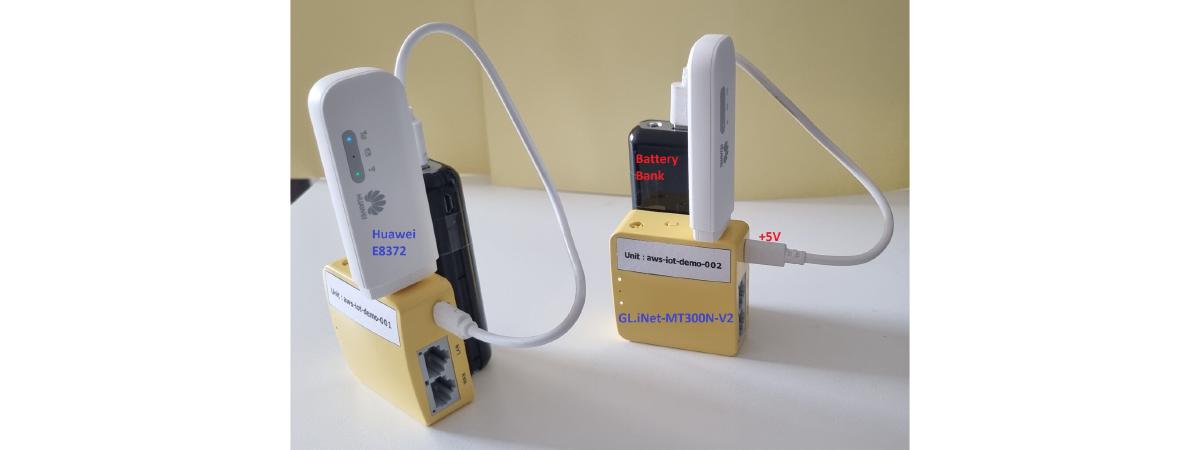

How to flash a ~$30 GL.iNet MT300N-V2 pocket router with a custom OpenWrt image that includes the AWS IoT Device SDK and an aws-iot-pubsub-demo application — turning it into an AWS IoT Edge device that can feed local sensor data to the cloud.
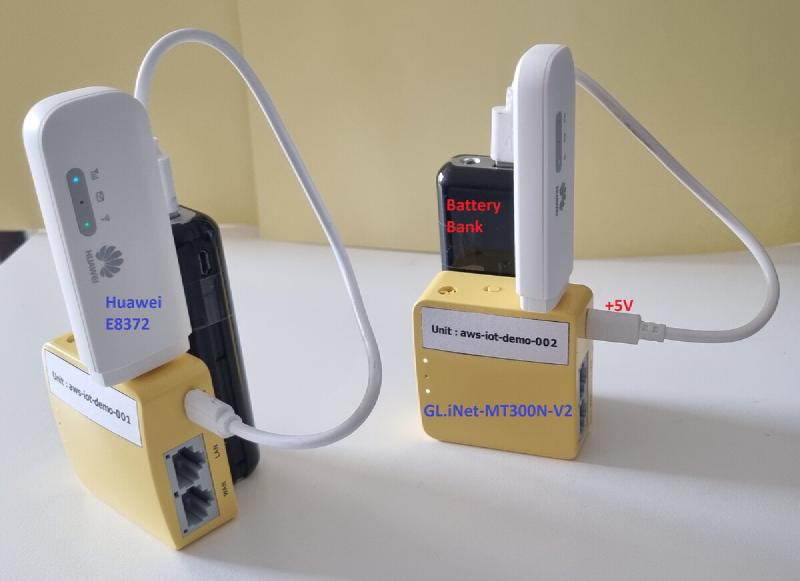
Quick overview #
Three steps to turn your pocket router into an AWS IoT Edge device:
- Flash the OEM firmware with the custom gl-mt300nv2-awsiot-demo.bin
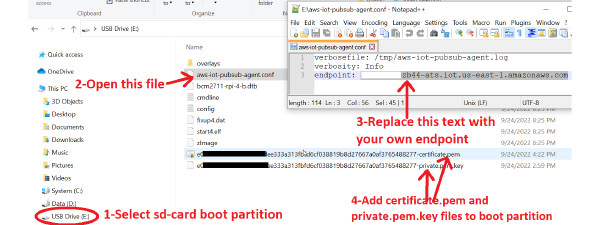
- Upload your AWS-generated device certificate and private key via the web UI
- Reboot and watch Hello World messages published to your AWS IoT Core
Flashing the firmware #
Step 1 — Connect your PC to the pocket router via Ethernet and power it on. Wait for the LED to stop blinking.
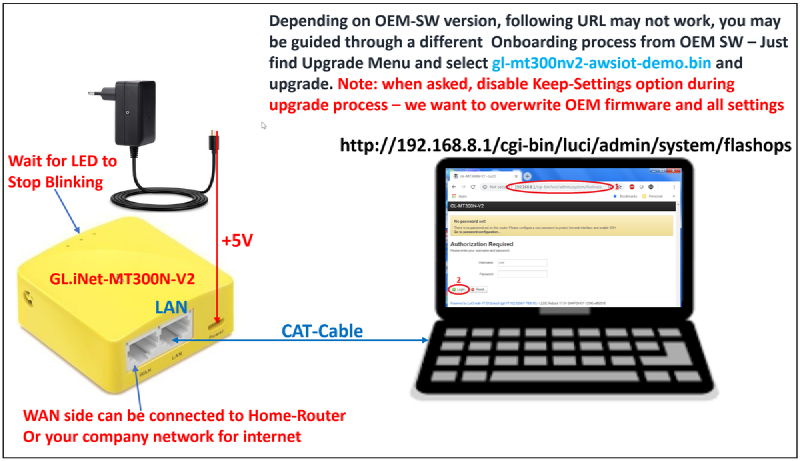
Step 2 — Open http://192.168.8.1/cgi-bin/luci/admin/system/flashops in your browser (or follow GL.iNet’s onboarding process).
Step 3 — Find the firmware upgrade menu and flash with gl-mt300nv2-awsiot-demo.bin.
Important: Disable “Keep settings” — you want to start with default settings.
Step 4 — Wait about 2 minutes until the LEDs stop blinking.
Step 5 — Disconnect and reconnect the Ethernet cable on your PC so it gets a new IP in the 192.168.20.x range.
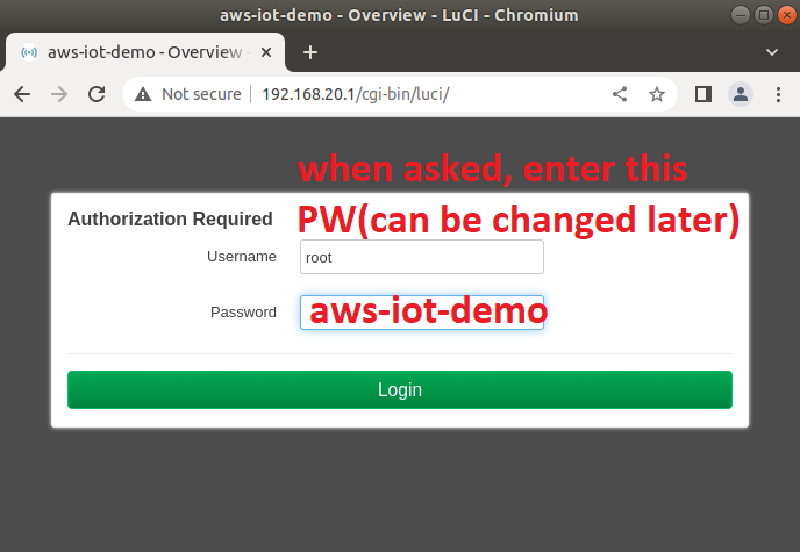
Step 6 — Navigate to http://192.168.20.1 — you should see the new web UI:
AWS IoT configuration #
Step 7 — Upload your device certificate and private key files through the web UI:
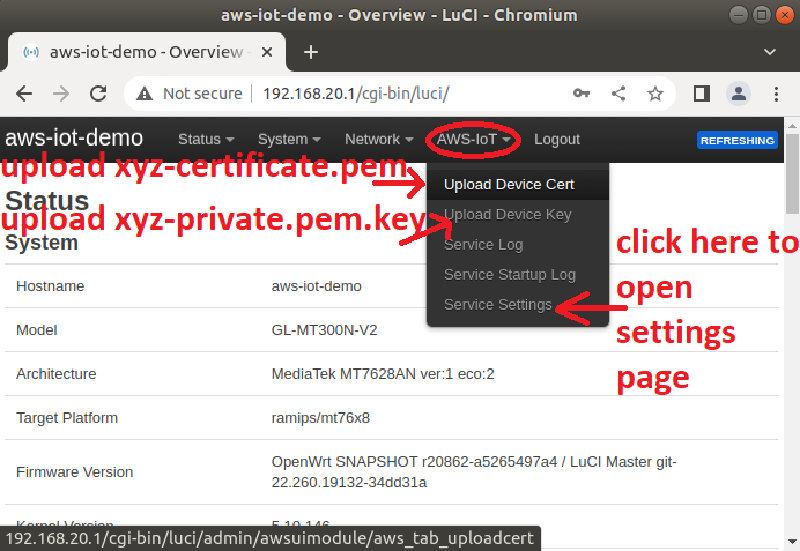
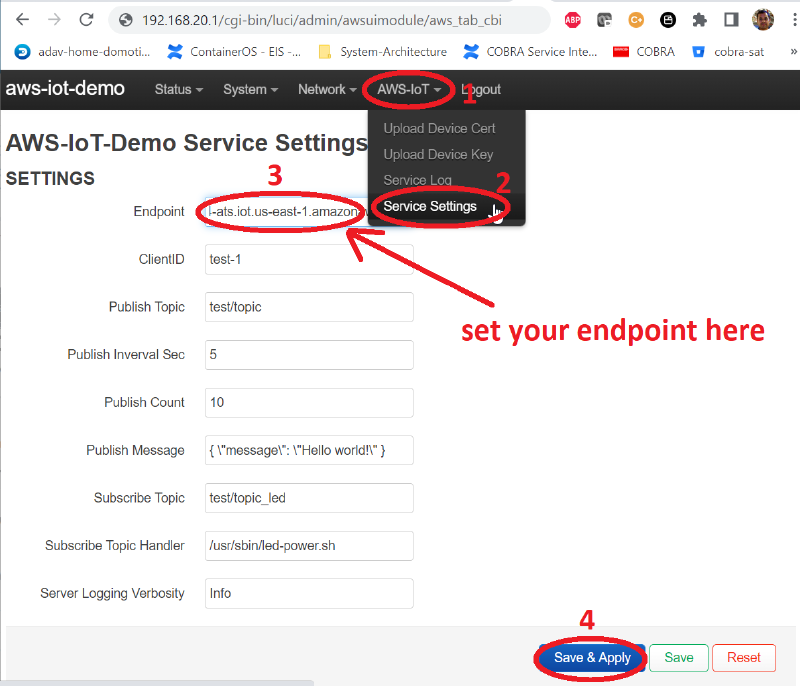
Step 8 — Go to AWS-IoT → Service Settings, enter your endpoint, and click Save & Apply.
Before clicking Save & Apply, ensure your security policies on console.aws.amazon.com are set up correctly (see Step 10 below).
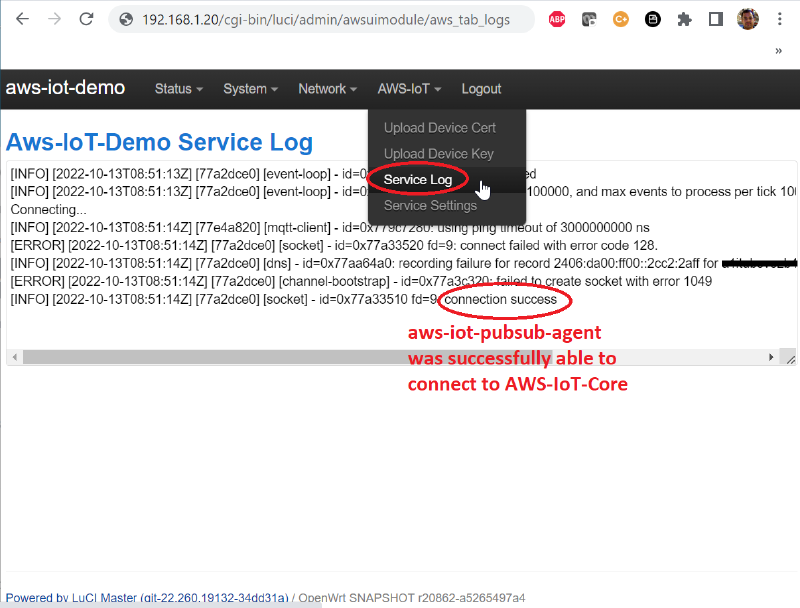
Step 9 — Check the Service Log. If everything is configured correctly, you should see a “connection success” message:
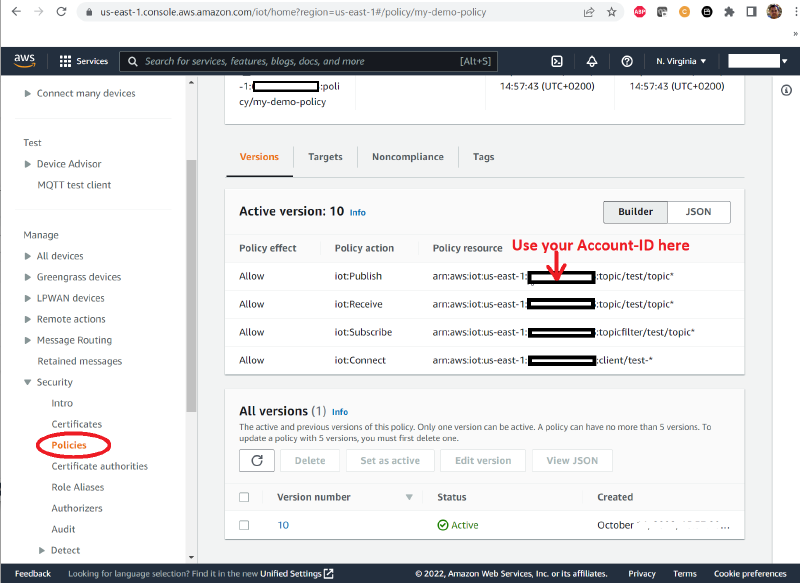
Step 10 — On console.aws.amazon.com, ensure your security policies are set correctly:
Testing publish and subscribe #
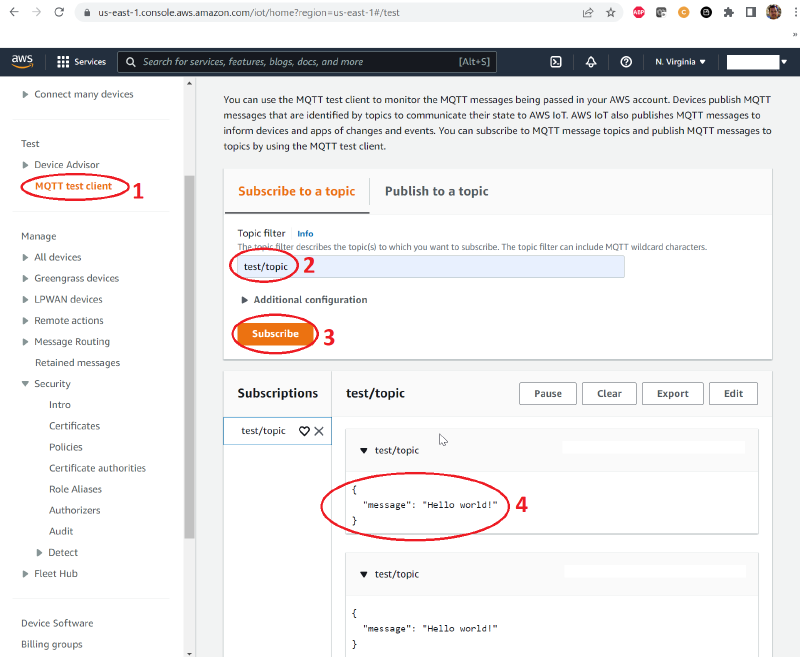
Step 11 — On console.aws.amazon.com, subscribe to topic test/topic to see Hello World messages published from your pocket router. By default, the demo publishes 10 messages at 5-second intervals. To publish continuously, increase the Publish Count in the Service Settings page.
Step 12 — To test the subscribe action, publish a JSON message to topic test/topic_led from the AWS console to control the router’s LED:
{"powerstate" : "on"}
{"powerstate" : "off"}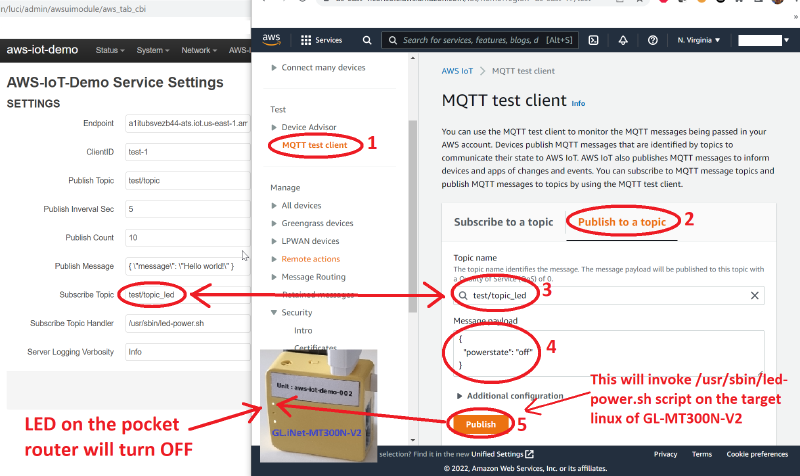
Other use cases #
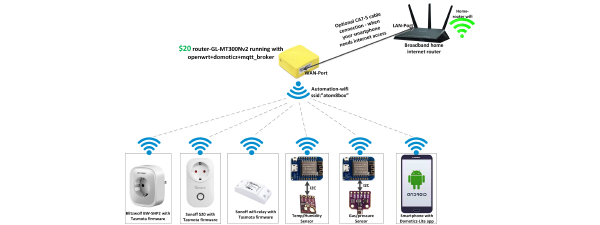
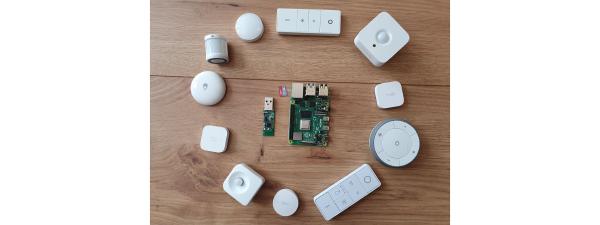
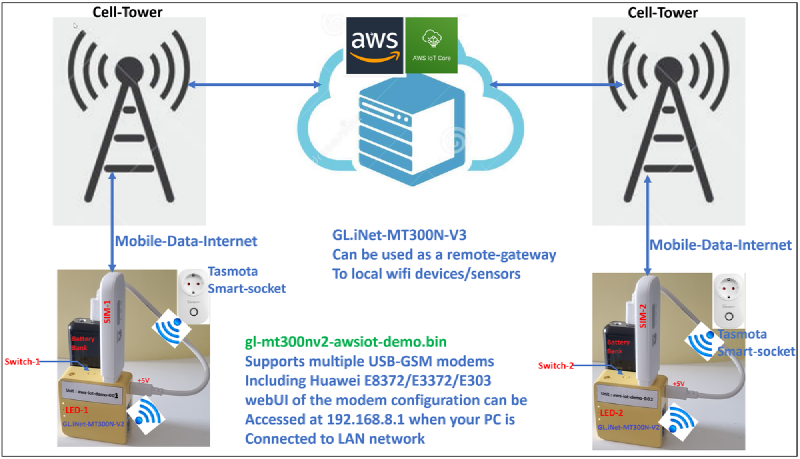
The pocket router can act as a gateway between AWS IoT Core and local Wi-Fi or USB-connected devices:
github.com/hackboxguy/openwrt-wrapper