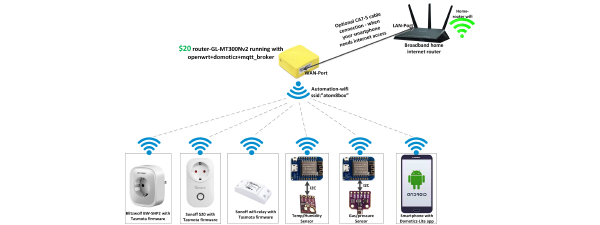

Step-by-step guide to replace the stock Qualcomm firmware on an A5-V11 pocket router (~$5) with OpenWrt, giving you a fully hackable Linux device.
What you need #
- A5-V11 pocket router (Qualcomm variant)
- FAT-formatted USB flash drive
- PC with Ethernet port
- Ethernet cable
- 5 V USB power source
Step 1 — Prepare the USB drive #
Download and unzip a5-v11-openwrt.zip onto a FAT-formatted USB flash drive.
Important: Do not just copy the .zip file — extract it so the folder containing openwrt-factory.bin, the bootloader, and update scripts sits at the root of the drive.
Step 2 — Connect the hardware #
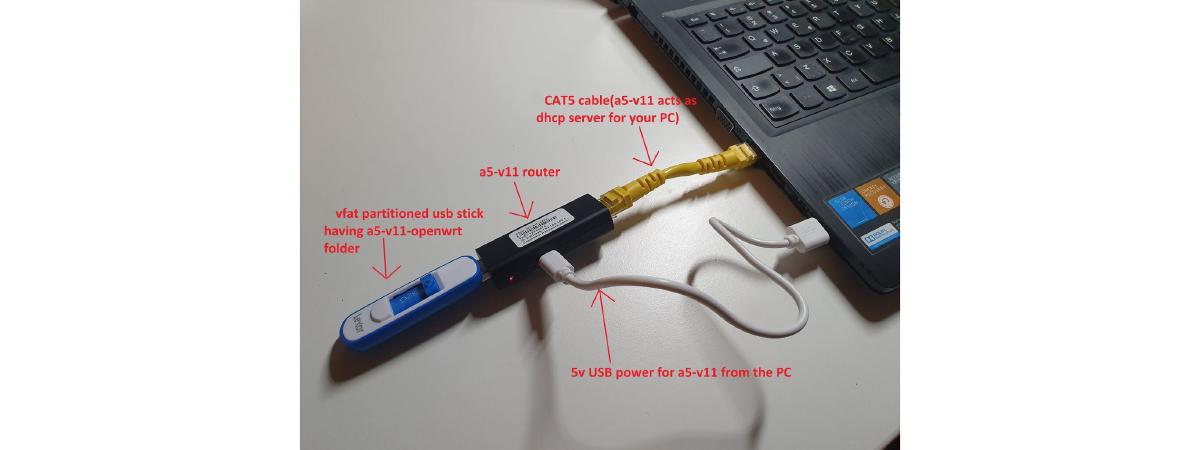
Wire up the A5-V11, USB drive, PC, and power as shown:
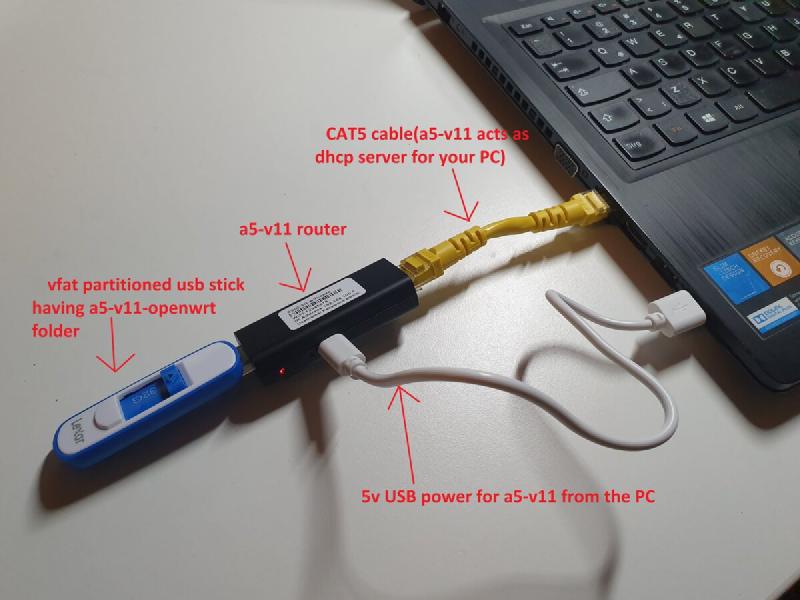
Step 3 — Power on and wait #
Apply 5 V power. The RED LED stays on for a few seconds, then the BLUE LED starts blinking (takes about 1 minute from power-on). Your PC should receive an IP in the 192.168.100.x range from the router’s DHCP server.
Step 4 — Verify Qualcomm firmware #
Open the router’s web UI and confirm it shows the Qualcomm interface:
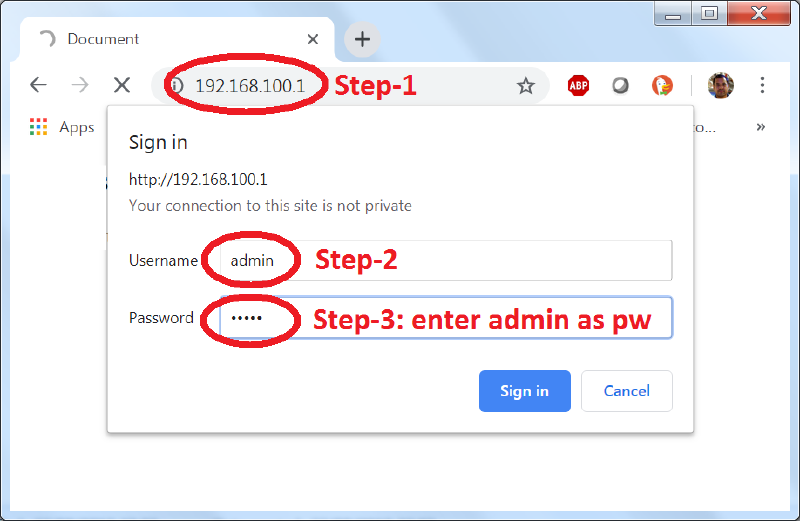
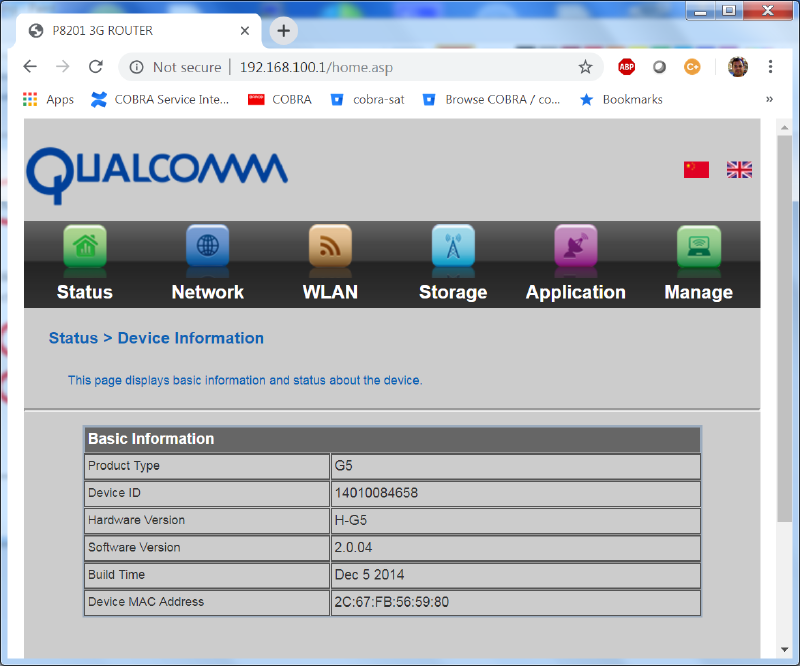
Stop here if your router’s web page looks different from the screenshots above. You may have a Chinese firmware variant — follow this other guide instead.
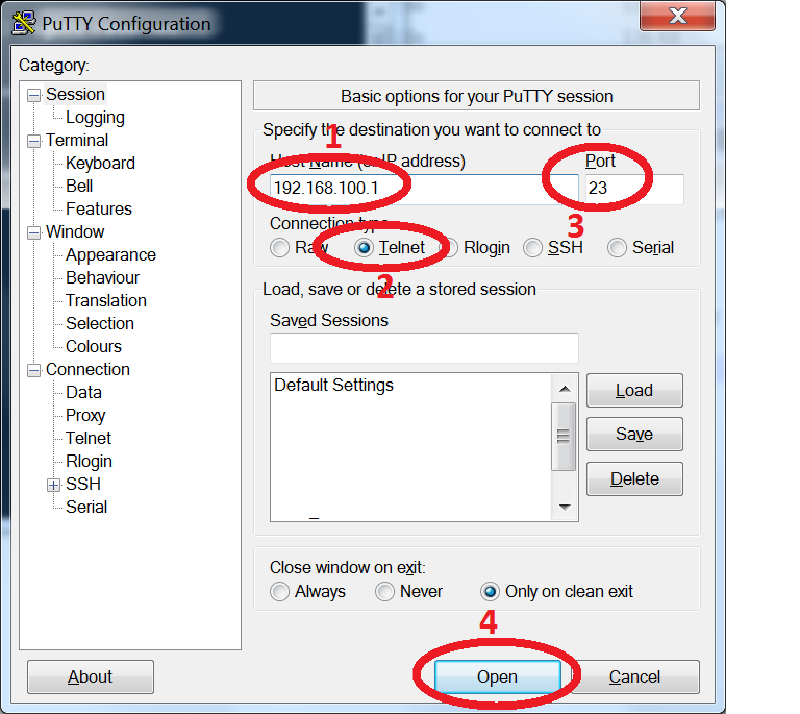
Step 5 — Telnet in and flash #
Open a telnet session to the router using PuTTY or a terminal:
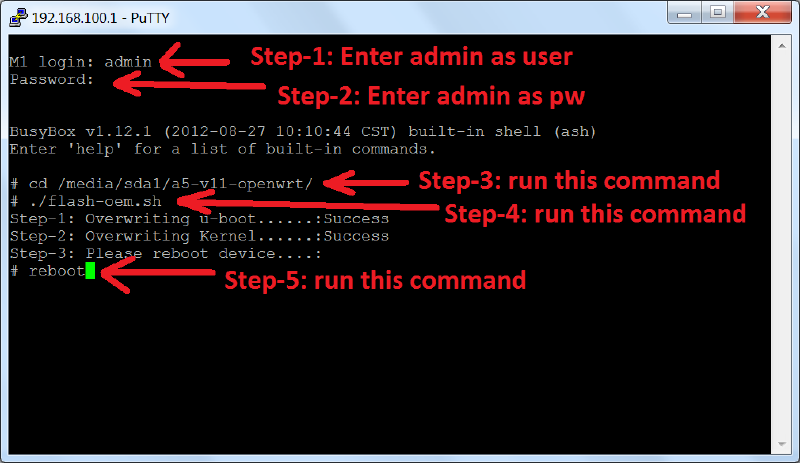
Run the firmware flash commands as shown:
Step 6 — Reboot into OpenWrt #
After reboot, wait about a minute. OpenWrt will boot and your PC will get an IP in the 192.168.1.x range. Open a browser and you should see the OpenWrt LuCI interface:
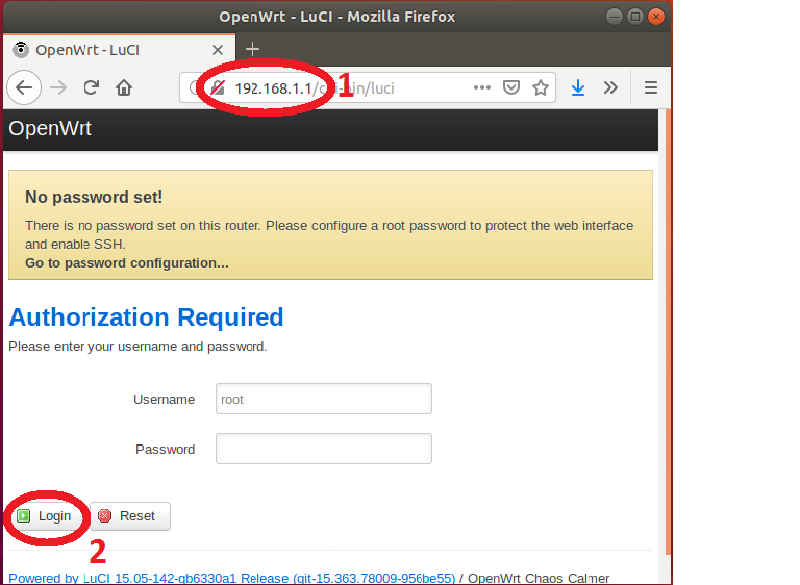
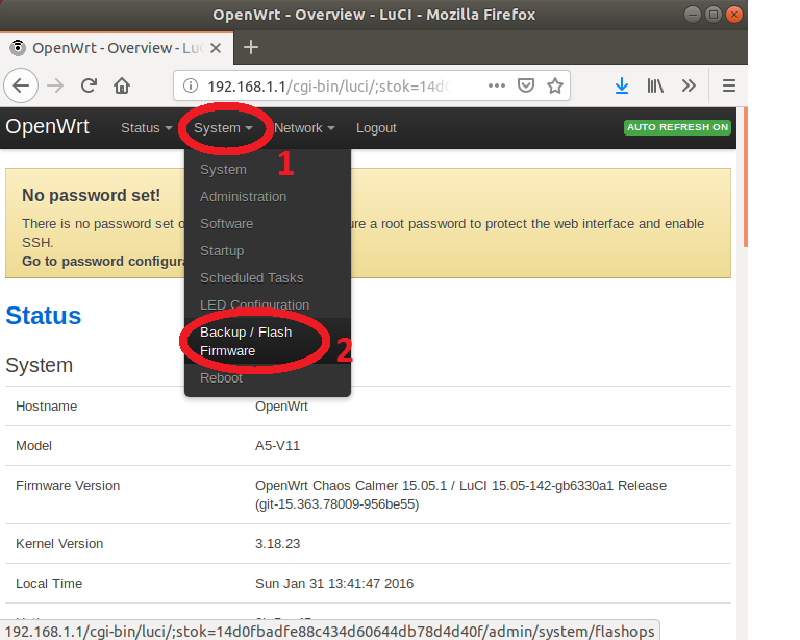
Next step: You can now overwrite this base OpenWrt image with your own custom build via the System → Backup/Flash Firmware menu.
github.com/hackboxguy/downloads — a5-v11-openwrt.zip